
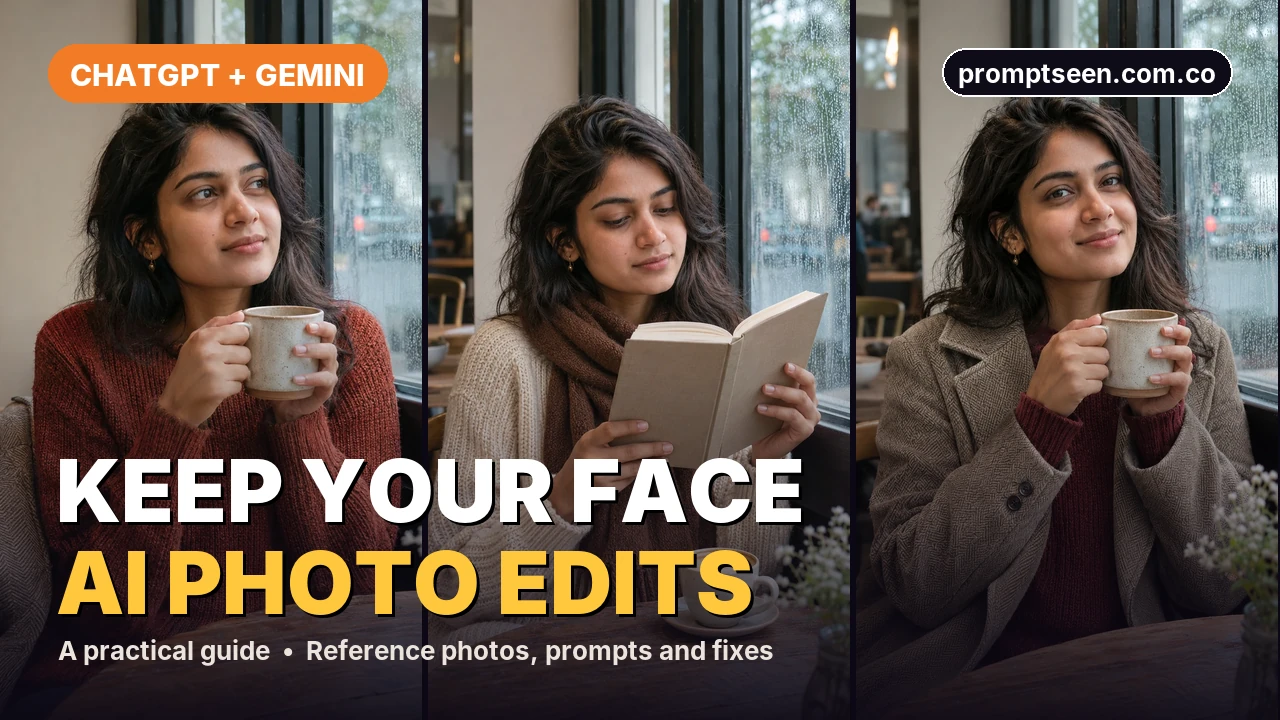
Upload a clear photo, say what must stay and change one thing at a time. Then compare the edit with your original. These steps can help keep your face recognisable, but no prompt can guarantee an exact match.
Why the Face Changes
An AI photo editor can rebuild parts of a picture while it changes the scene. A line such as “keep my face” tells the model what you want, but it does not lock every pixel. A big pose change, a distant face or deep shadows can make the result harder to match.
Start with a small edit. Keep your pose and clothes while you change the background. If the face looks right, ask for the next change. This takes a little checking, but it gives you a clear place to restart when something goes wrong.
Choose a Reference Photo That Helps
- Use a sharp photo where both eyes, the nose and the jaw are easy to see. A front or slight three-quarter view is a useful starting point.
- Choose even light. Avoid a face hidden by sunglasses, hair, a hand or deep shadow.
- Upload the original file when possible. A small screenshot or a heavily compressed WhatsApp copy gives the editor less detail.
- Skip beauty filters if you want natural skin. Ask the editor to keep the texture already in the photo.
- For a couple edit, use one clear photo per person and label them A and B in the prompt.
Edit in ChatGPT or Gemini
- Upload your reference photo in ChatGPT or Gemini. Ask to edit that photo, rather than asking for a new person who looks similar.
- State what must stay: the person, facial shape, skin tone and hairstyle. Then name the single change you want.
- Paste the starter prompt below. Replace the cafe with your chosen place. Keep the rest short for the first try.
- Compare the result with your original before you ask for more changes. Check the eyes, jaw, smile and hairline.
- If the face has drifted, return to the original upload. Describe the exact part that changed instead of adding a longer list of camera terms.
- Download the image and check it at full size. Look at hands and background details before posting.
Starter Prompt: Change the Scene, Keep the Person
This prompt leaves the pose and outfit alone. That makes it easier to see whether the background edit has also changed the face. Replace only the setting for your first attempt.
Copy the Starter Prompt
Edit the uploaded photo. Use it as the identity reference. Keep the same adult person, facial proportions, skin tone, hairstyle and natural skin texture. Change only the background to a quiet cafe beside a large window. Keep the original pose and outfit. Use soft window light that fits the face. Make a realistic vertical 9:16 photo. Do not add text, logos, extra people or a beauty filter.
Three Cafe Examples: What to Check
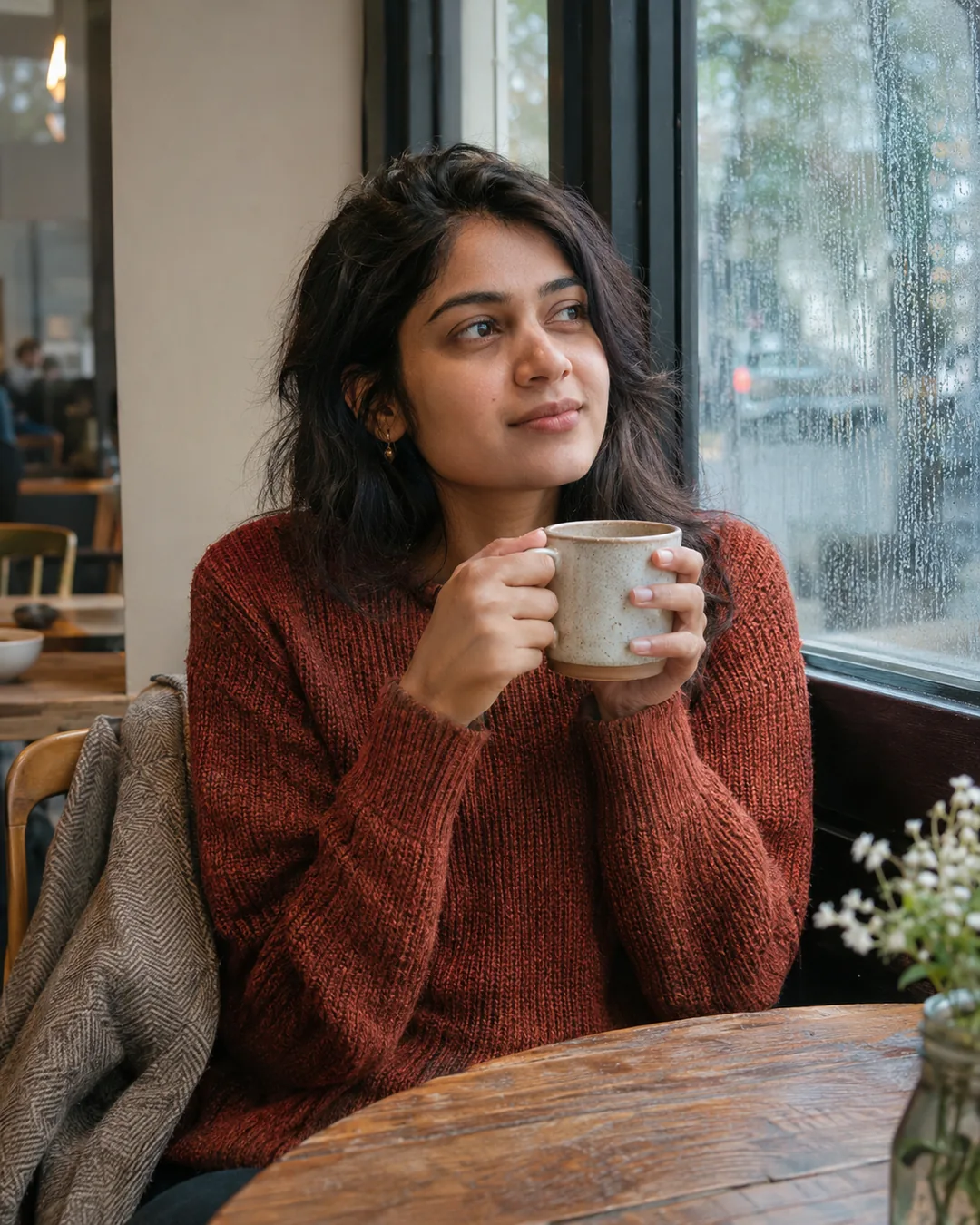
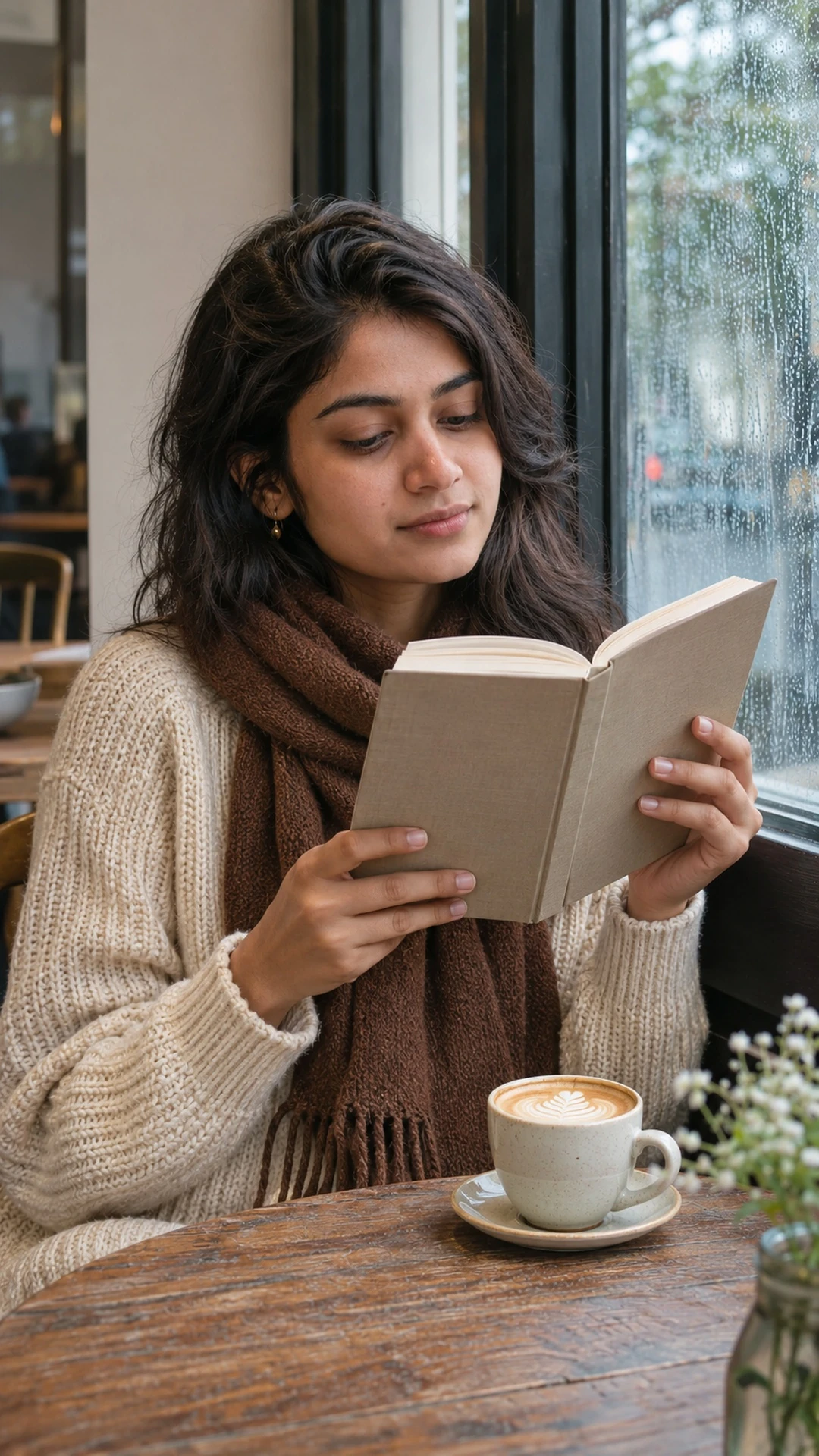
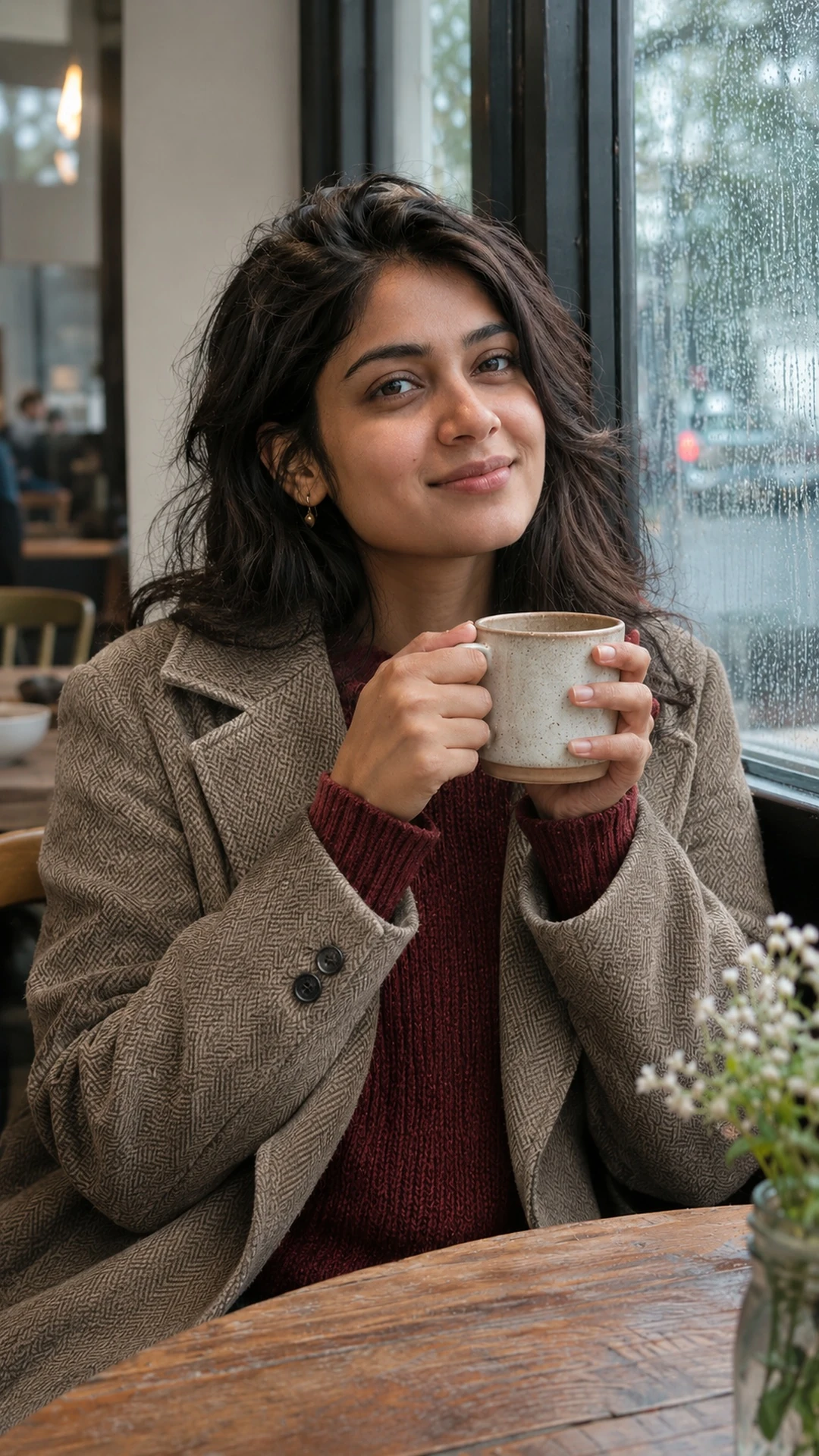
These examples use the same fictional reference character. The new reading and rainy-window images were made in ChatGPT using the first cafe image as a visual reference. They are AI-generated examples, not photos of a real customer. We have not run this comparison in Gemini.
The room and pose vary between the examples. Compare the eyebrow shape, nose, hair part and face outline. A similar overall look is useful, but it is not proof of an exact identity match. For a real photo, compare against your original at full size.
Reference and New Scenes
Fix the Problem You Can See
| Problem | Try this next | What to check |
|---|---|---|
| Eyes or jaw look different | Reattach the original and name the changed feature. | Eye spacing and jaw outline. |
| Skin looks plastic | Ask to remove smoothing and keep the original skin texture. | Cheeks, forehead and under-eye detail. |
| The face is too small | Keep a waist-up or closer crop for the next attempt. | Can you clearly compare both eyes? |
| Couple faces get mixed | Label each upload and give each person a fixed left or right position. | Each face against its own reference. |
| Hands look wrong | Ask for relaxed, separate hands or a simpler pose. | Finger count, joins and grip. |
| Face and room light do not match | Ask for one soft light source from the same side. | Shadow direction on the nose and neck. |
Repair a Face Without Rebuilding the Whole Scene
Be clear about the fault. “Fix it” leaves the editor to guess. The example below names the eyes and jaw; change those words if your problem is the smile, nose or hairline. If each repair looks less like you, stop editing that version and return to the original.
Copy the Repair Prompt
Use the original uploaded photo as the face reference again. The last edit changed the jaw and eyes. Restore their original shape and spacing. Keep the background, outfit, pose and framing from the last edit. Keep real skin texture. Do not make any other changes.
Keep Two People Separate in a Couple Edit
Give each reference a clear label and place in the picture. Start with a simple pose where both faces are visible. Overlapping faces, hands across the face and a large change in camera angle make the result harder to inspect.
Copy the Couple Prompt
Edit the two uploaded adult reference photos into one realistic couple photo. Person A, from the first photo, stands on the left. Person B, from the second photo, stands on the right. Keep each person’s own facial features, skin tone and hairstyle. Do not mix their faces. Use a simple park background and soft daylight. Frame both people from the waist up, with their faces clearly visible. Keep hands relaxed and separate. No text, logos or extra people.
Check Before You Share
Look at the original and the edit side by side. Check the eye shape, nose, jaw, smile, skin tone and hairline. Then check the fingers, earrings, teeth and background edges. Ask someone who knows you whether the result still looks like you.
Keep the original file. If an edit loses detail, making it larger does not recover the missing face detail. Start again with a clearer reference instead. Only upload photos you have permission to use, especially when another person appears in them.
Choose Your Next Look
If you only need a new setting, follow our background editing guide before changing the outfit or pose. For two-person scenes, browse the couple prompt collection. You can find more starting ideas on Prompt Seen.
Face Editing Questions
Can a prompt keep my face exactly the same?
No prompt can promise an exact match. Ask for the features you want kept, use a clear reference and check the result before sharing.
Should I upload more than one photo?
Start with one clear photo for one person. If you add another view, say that it shows the same person. For a couple, label the separate people so the editor does not mix them.
Do I need a long camera prompt?
No. A clear reference, a small change and a short list of things to keep are a useful start. Add lighting or framing details only when they help the scene.
Are these example people real?
No. The cafe examples are AI-generated fictional adults. They show the editing workflow and its limits, not a guaranteed result for your own photo.