
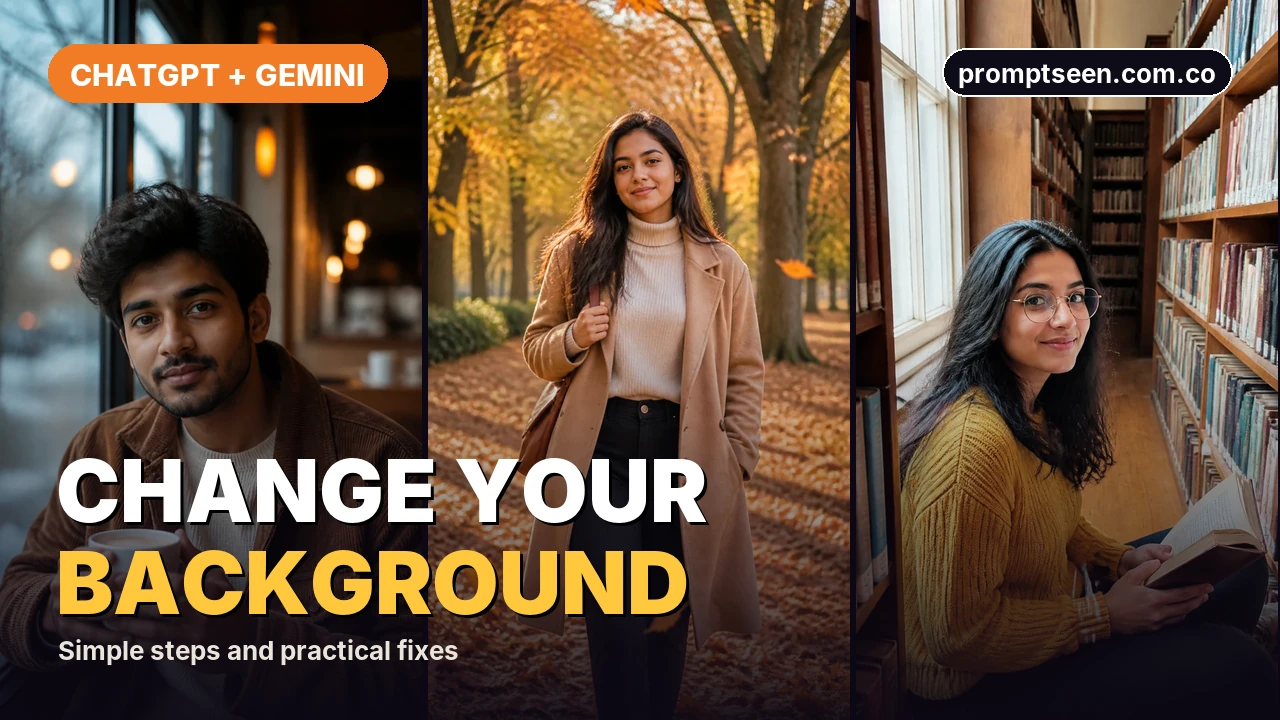
Upload your original photo, describe the new background and say what should stay the same. Keep the first edit small. Before saving, check the hair outline, face and shadows against the original.
Replace, Remove or Make Transparent?
Replacing puts the person in a new scene. Removing clears the existing scene. A transparent background is a different output: it should have no solid colour behind the subject. Say which result you need before choosing a prompt.
If you need an exact cut-out for a product or a logo, use a dedicated background-removal tool and check the edges. An AI scene edit may redraw details. A prompt asking to keep the face does not guarantee a pixel-perfect match.
Choose a Photo With Clear Edges
- Use the original file rather than a screenshot. Keep space around the head and shoulders.
- Choose a photo where hair is visible against the background. Heavy motion blur makes the outline harder to inspect.
- Look at the light on the face. A new scene should fit that light direction.
Change the Background Step by Step
- Upload your photo to ChatGPT and ask to edit this image.
- Name one new setting, such as a plain cream wall. Avoid changing the outfit and pose in the same request.
- List what should stay: the person, face, clothing, pose and crop.
- For a local correction, select the area and describe it in words too. Selection is a guide; edits can extend outside it.
- Compare the result with the original. Correct one fault at a time, then save the best version.
1. A Simple Studio Background
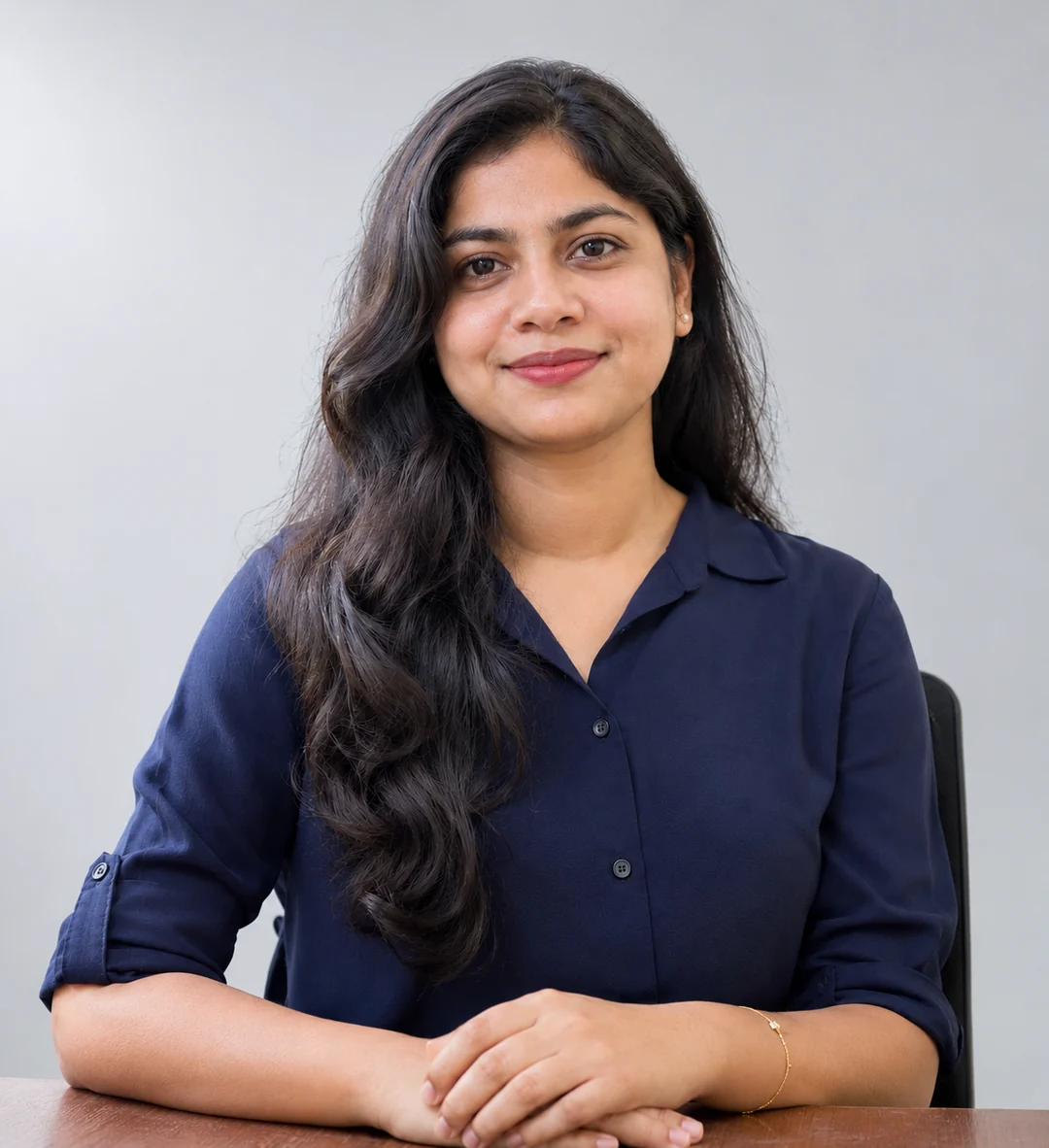
Start here when the person already looks right. A plain wall gives you fewer new details to inspect.
Copy the Studio Prompt
Edit the uploaded photo. Replace only the background with a plain cream studio wall. Keep the person, facial features, skin tone, hairstyle, clothes, pose, expression and framing unchanged. Match the background light to the existing light on the face. Keep natural hair edges and realistic shadows. Do not add text, logos, props or people. Keep the original aspect ratio.
2. An Outdoor Background
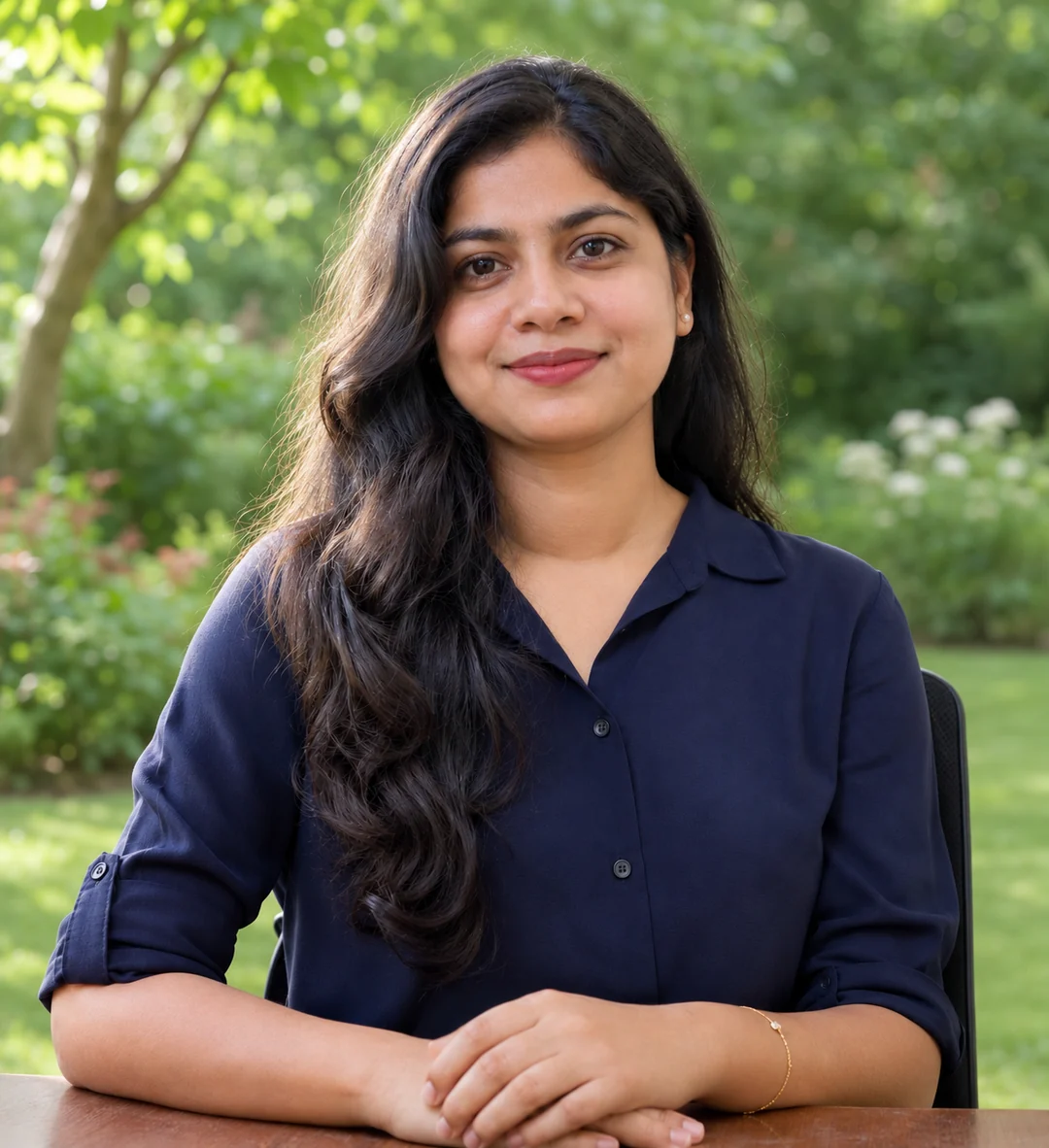
Choose a scene that fits the existing light. A softly lit face is easier to place in open shade than in harsh midday sun.
Copy the Outdoor Prompt
Edit the uploaded photo. Replace only the background with a quiet park path in soft daylight. Keep the same person, face, hair, outfit, pose, size and position in the frame. Match the new scene to the light already on the person. Use gentle background blur, realistic hair edges and natural contact shadows where visible. Do not crop, add people or add text.
3. A Clean Product Background
For a product, inspect the label, shape and colour after the edit. Do not use a version that changes the product details a buyer relies on.
Copy the Product Prompt
Edit the uploaded product photo. Replace only the background with a plain off-white surface and wall. Keep the exact product shape, proportions, colour, material, label and camera angle. Add a soft contact shadow consistent with the original light. Do not redesign the product, change writing or add props. Keep the original crop.
Fix the Fault You Can See
| Fault | Next instruction | Inspect |
|---|---|---|
| Halo around hair | Clean only the bright fringe around the hair; preserve the hair shape. | Hair against the new wall. |
| Pasted-on subject | Match background brightness and shadow direction to the original face. | Neck and shoulder shadows. |
| Changed face or clothes | Restart from the original and change only the scene. | Original versus result. |
| Wrong crop | Keep the original framing and subject position. | Headroom and shoulders. |
Save and Check Before Sharing
Check the image at full size. Look for missing strands of hair, bent glasses, a changed jaw, unexpected jewellery and shadows that point in different directions. If several details changed, return to the original instead of repairing each new version.
New to the editor? Follow our ChatGPT photo editing walkthrough. If the face is the main problem, use our face-preservation guide. Find your next style on Prompt Seen.
Write a Background Request That Fits Your Photo
Before you paste a prompt, look at where the person is standing or sitting. A seated portrait needs a believable chair, bench or crop. Asking for a beach walk while keeping a seated pose creates a conflict. Keep the pose and choose a scene that can support it. For a close portrait, a plain wall or softly blurred park is a simpler starting point than a wide landscape.
Describe the place, time of day and one light source. For example, “a quiet cafe beside a large window in soft morning light” gives the editor a scene it can build. Avoid mixing sunset, bright noon, neon and candlelight in the same request. If the original face has strong light from the left, ask for the new scene to match that direction rather than lighting the face again.
Our ChatGPT photo prompt collection shows different settings you can describe, including a cafe, library and rooftop. Use those as scene ideas; keep the background-only instruction when you want to preserve the outfit and pose in your own upload.
Keep Couples and Group Photos Believable
For a couple photo, ask to keep both people in their original positions and at the same size. Check the space between their shoulders, their overlapping hands and the ground beneath their feet. A new floor should meet both people at a believable height. If one person becomes larger, return to the original and state that their relative size and distance must stay unchanged.
A quiet setting makes a two-person edit easier to inspect. Try a simple park or an indoor wall before adding crowds or decorations. For ideas that already suit two people, browse our couple photo prompts, then choose only the setting details you need. Do not add every pose and clothing instruction from a style prompt to a background-only request.
Repair Edges Without Rebuilding the Portrait
If only the hair outline looks wrong, name that fault instead of requesting a better photo. Try: “Clean the pale fringe around the hair only. Keep the face, hairstyle, clothing and background unchanged.” Check the result at full size. An edit that removes the fringe but also removes strands of hair is not a clean repair.
Use the same approach around glasses, earrings and loose fabric. Work on one boundary at a time. If the editor keeps changing the face or losing fine details, keep the original portrait and use a conventional layer-based editor for the cut-out. You do not need another generation when the task is a small edge cleanup.
Choose a Crop Before You Download
Keep the original aspect ratio during the background edit. Once the scene looks right, make a separate version for the place you will post it. A tall Story image needs more space above and below the subject; a square profile image needs the face away from the outer edges. Review the crop rather than assuming the full picture will fit every format.
Save the original upload and the best finished edit as separate files. Before sharing, check that the download opens, has the intended background and has not cut off the head or hands. For transparency, inspect the file over a coloured layer: a white rectangle means the background is still solid.
Read the Examples Before You Edit
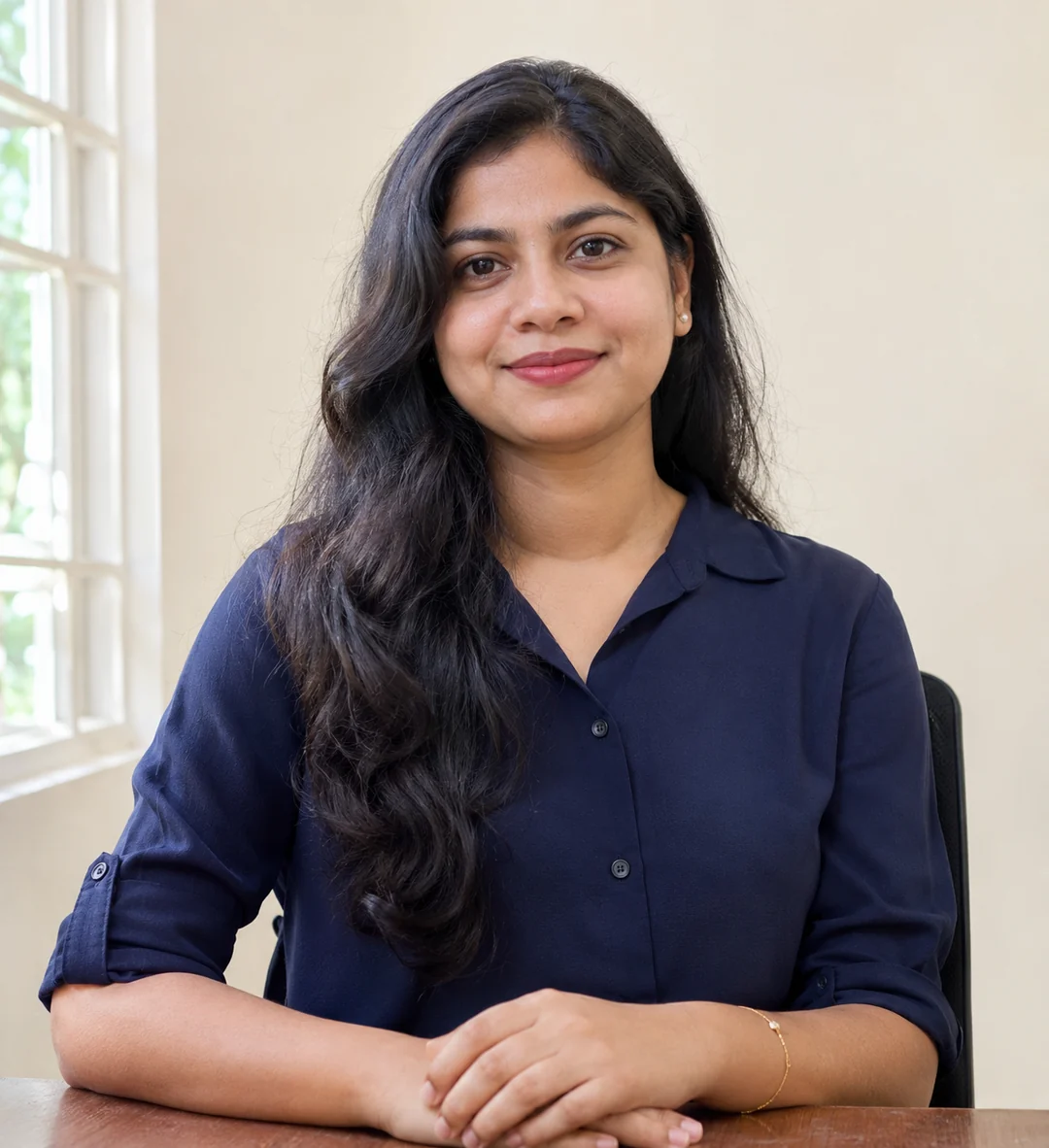
These fictional-adult examples show an original reference and two edits made from it with ChatGPT image generation. Each caption identifies the requested change. They are examples of what to inspect, not a promise of exact identity or pixel preservation. Small details can still drift, so compare every result with its own original.
The studio and garden examples start from the same navy-blouse portrait. The intended change is the backdrop. Check the table edge, hands, hairline and blouse as carefully as the new setting. A pleasing scene is not enough if the edit changes details you wanted to keep.
Three Visual References and What to Inspect
Walk Through One Edit From Start to Finish
- Start with the original reference in the first image. Note the clothing, hand position and direction of light. For your own edit, make this note from your own uploaded photo.
- Request a plain wall behind the person while keeping the chair, table, pose and framing. Keep the original lighting for this first attempt. This gives you a small change to inspect.
- Compare the original and result at a similar zoom. First check the requested area. Then check the face, cup, fingers, sleeve edges and crop. Do not approve the whole image just because the new room looks good.
- If one edge is wrong, request one edge repair. If the face, pose and props all changed, return to the original upload with a shorter request. Save the good version before trying a different style.
Make a Useful Follow-Up Request
Avoid “make it better” when you can name the problem. A useful follow-up is: “Keep this version, but remove the bright fringe around the left shoulder. Keep the face, hair, clothing and framing unchanged.” The location and the fault tell the editor what you are trying to repair. Treat a selection as guidance, not a guarantee that nearby pixels will stay fixed.
Check whether a repair changes something that was already correct. A smoother outline is not an improvement if it removes an earring or changes the jaw. Stop repeating the same broad request when each version loses another detail. For precise boundaries, keeping the original subject in a layer-based photo editor may be a better finishing step.
Where to Go Next
For a seated indoor setting, compare the lighting in our winter cafe girl photo examples. For the full upload-and-edit process, follow the ChatGPT editing walkthrough. Choose a setting that fits your original pose instead of copying every detail from an example.
Background Editing Questions
Will my face stay exactly the same?
It may change because the editor can redraw details. Compare against the original and return to that file if the identity changes.
Can I do this in Gemini too?
Gemini also supports editing uploaded images. You can try these plain-English instructions there, but the output and available controls can differ.
Is a white background transparent?
No. A white wall is a solid background. For transparency, request a transparent output and verify the downloaded file in an editor that shows transparency.